

How to Calibrate Your Monitor for Photography
First
Reduce room lighting and try to avoid reflections on the monitor before calibrating. If the room is too bright, the monitor will likely be set too bright to compensate.
Second
If you're experiencing viewing issues, try a different monitor first. Did you notice any improvement from one monitor to the next?
Older monitors (two years or more) are usually out of calibration, including the white point. Newer monitors are best, but even they sometimes need tweaking, particularly if you're doing photo editing, regardless of which operating system you're using.
LCD Monitors Are Brighter
Newer LCD monitors are much brighter than older displays. If yours is set too bright, your photos may end up looking too dark once printed or viewed elsewhere. My own monitor is set between 33% and 40% of maximum brightness, and that number shifts slightly between calibrations.
With LCDs, the basic brightness setting is the one you want to adjust. With older CRT monitors, you may instead need to alter the contrast setting to change overall brightness.
Set the monitor to display "millions of colors," or 24/32-bit color. Ideally, this setting should be switched on for at least twenty minutes before viewing.
How Long Has the Monitor Been On?
Monitors should be switched on for at least twenty minutes before making any adjustments or calibrations.
If your web browser allows you to use color management, turn that option on. If you're unsure, it's fine to leave it as-is.
Screen Calibration Image
Computer monitors can vary greatly in brightness and color.
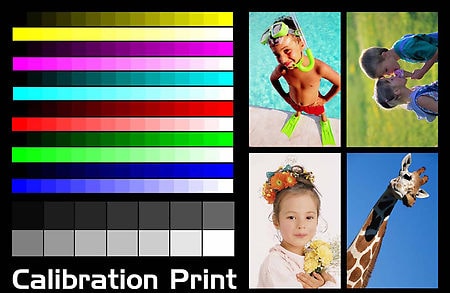
Here's a simple way to check whether your screen is close to accurate. (If you're using a laptop, make sure you're viewing the screen perpendicular, straight-on.) Check the monochrome wedges below for brightness — you should be able to see a slight change in each square, left to right.
If you're unable to see a slight change in each square from left to right, the monitor needs calibrating.
What the Brightness and Contrast Controls Do
For a detailed explanation of what the brightness and contrast controls actually do, click here.
For true, accurate color in photographic images, consider a hardware calibrator. It's simple and easy to use, and it will correct monitor color, brightness, and contrast automatically. That said, it won't compensate for a bright room, reflections, or an old monitor. I calibrate my monitor weekly, and always before delivering client work, using the Spyder calibration tool shown below.
Simple Monitor Adjustments
Take a look at the test images below — they're designed to help adjust your screen to display images more accurately.*
You may find the monitor looks a little odd right after adjustment, especially if it was significantly out of calibration. This is normal, and you'll get used to it quickly.
The controls on your monitor may be physical adjustment knobs, or an on-screen menu produced by the monitor itself (your mouse won't work for this — use the monitor's own buttons).
* Basic monitor calibration isn't difficult, but if you're not comfortable changing settings on your machine, it's best to ask someone experienced to help the first time. A well-calibrated monitor improves your viewing of most sites. And as a courtesy, it's never a good idea to adjust someone else's computer monitor without their permission.
Calibrating a Monitor for Viewing Photos Correctly
The strip below shows a range of grays from pure black to pure white.
You should be able to see a clear difference between each shade of gray, from pure black (left) to pure white (right). If not, the monitor needs to be calibrated.
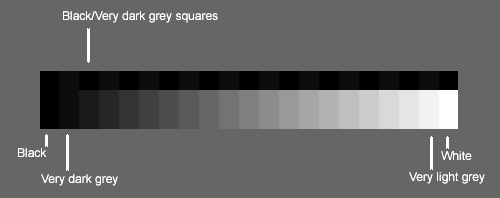
Along the top of the strip are alternating patches of black and dark gray.
If it looks like solid black to you (look carefully), your monitor's brightness is set too low and needs calibrating. Increase the brightness until you can just barely perceive the difference between the gray and black squares.
If it resembles either of the two strips below, the monitor's brightness is set too bright or too dark and needs to be calibrated.

This test only confirms that you can see shadow and highlight detail — it isn't a way to set maximum brightness accurately. A hardware calibrator is needed for that (see below).
Spyder Pro Calibration
For monitor color calibration, I use a device called the Spyder Pro by Datacolor. It's available by mail order from larger camera stores for $250 to $300.
For true, accurate color in your digital images, a hardware calibrator like this is worth having. It's simple and easy to use, and corrects monitor color, brightness, and contrast automatically. It won't, however, compensate for a bright room, reflections, or an old monitor.
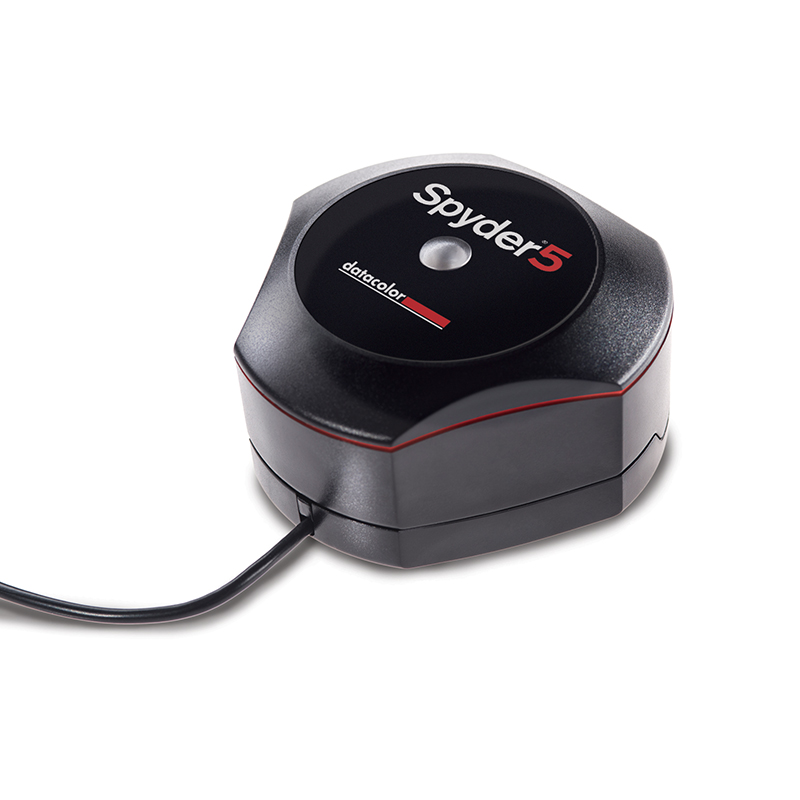
I am not paid for this recommendation. It's simply what I use to color-correct my own images.